
Understand every meeting, know what to say,
skip the notes.
Live translated captions with the original side by side. Not sure how to respond? Click “How should I reply?” and AI gives you three replies you can say out loud. When the meeting ends, get bilingual meeting minutes and a follow-up email in one click.
Understand, reply, and skip the notes
Live bilingual captions → “How should I reply?” suggestions → bilingual meeting minutes in one click.
Install it and you're ready
The extension reads the meeting platform's own live captions, translates them instantly and records everything. No audio recording, no extra app.
Add to Chrome
A short guide helps you pick the meeting and translation languages — about a minute.
Turn on captions
Join Meet, Zoom or Teams in Chrome and turn on captions. The bilingual caption box appears at the bottom.
Read the AI summary
When you leave, an AI summary is generated automatically. Need a detail? Ask the AI — answers cite timestamps.
From the meeting to the follow-up, in one extension
Built for Chinese speakers first — natural Traditional Chinese translation, summaries and Q&A — and understands British, Indian and Singaporean English expressions.
Live bilingual captions
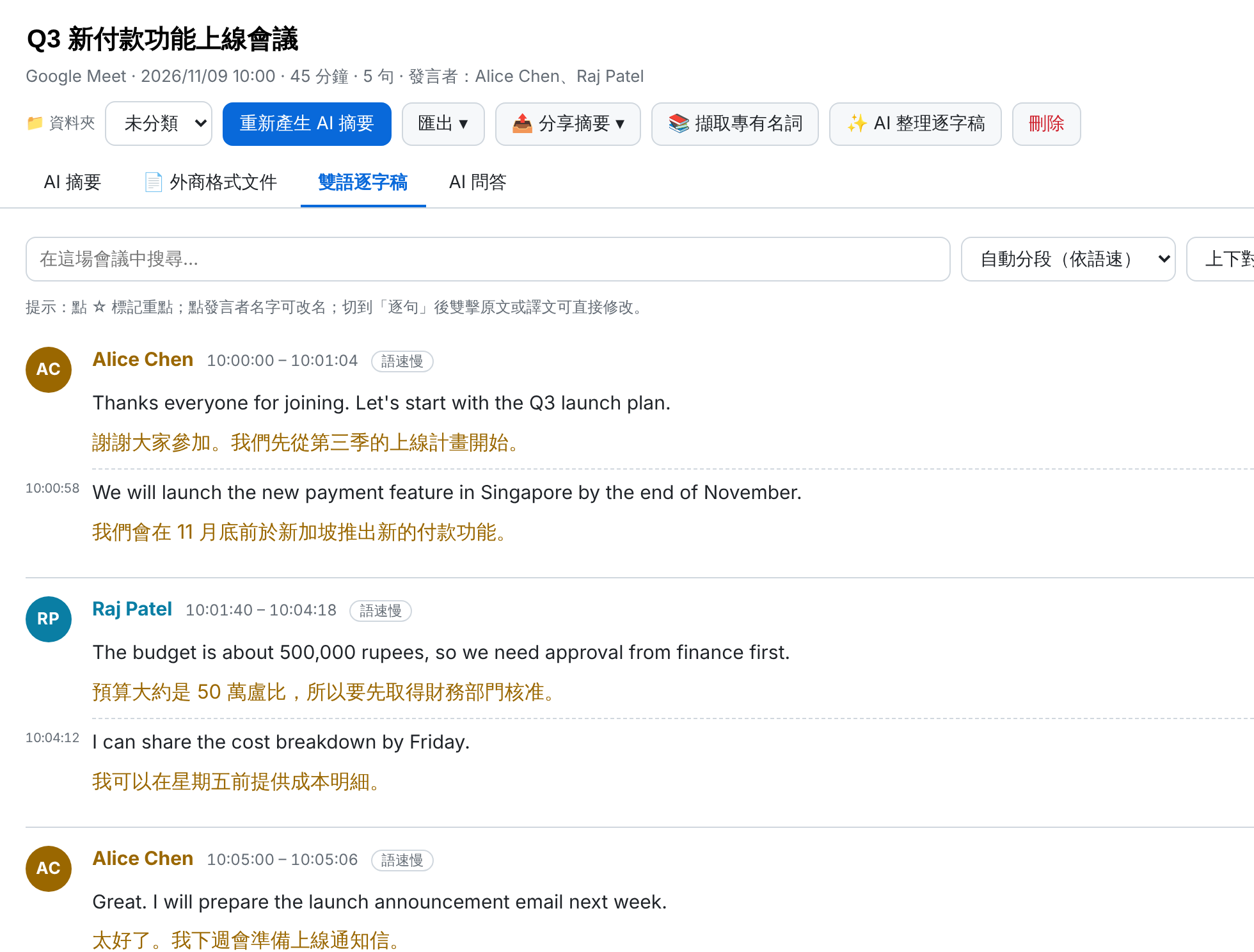
Translation starts as soon as someone speaks. Each speaker's lines are merged into readable paragraphs.
Ask AI during meetings Pro
Lost or not sure how to respond? Ask “What was just said?” or “How should I reply?” and get key points and suggested replies instantly.
AI meeting summary
Generated when the meeting ends: overview, key points, decisions, and action items with owners and due dates.
Business documents
Meeting minutes, follow-up emails and executive briefs in one click — in English, Chinese or both, ready to paste into Outlook.
Glossary
Company, product and people names translated your way; common speech-recognition mistakes are corrected automatically.
AI Q&A Pro
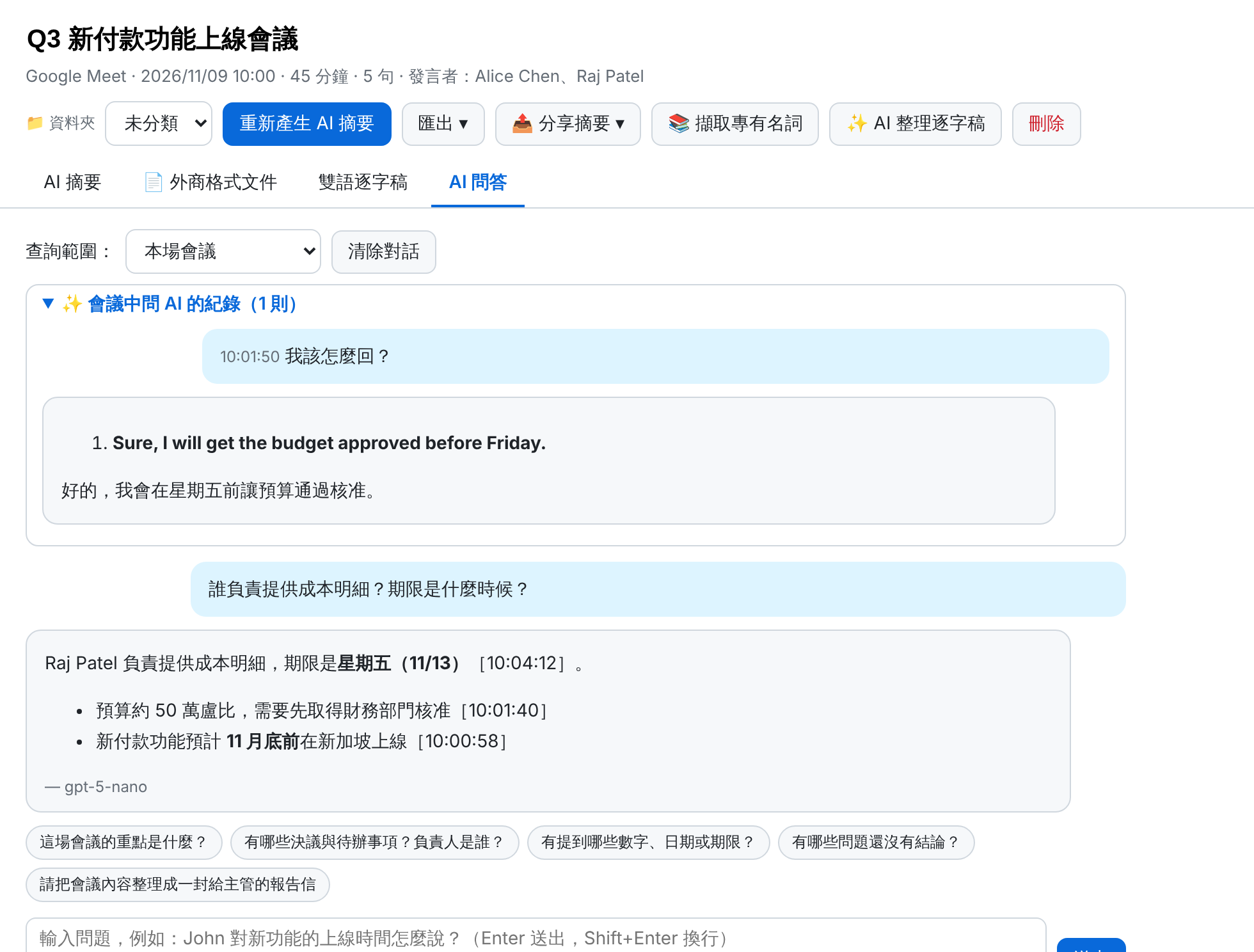
Ask “who owns the cost breakdown?” and get an answer from the transcript with timestamps — across one meeting, a folder or all meetings.
AI transcript clean-up
Fragmented captions, misheard words, wrong speakers? Merge, fix, re-assign speakers and re-translate in one click.
Folders & export
Organize meetings in nested folders, search everything, export to Markdown, TXT, Excel or JSON.
19 languages
English → Traditional Chinese by default; switch between 19 languages including Japanese, Korean, Spanish and more.
Client & project reports Pro+
For PMs, account managers and CSMs: no more updating spreadsheets after every call or digging through notes for a QBR. Keep each client or project in a folder — AI tracks progress and writes the report in one click.
- Progress tracker: requirements, action items, decisions, risks and client commitments with owner (us / client), due date and status, updated after every meeting and exportable to Excel
- One-click reports: weekly, monthly, client progress reports and QBRs in Traditional Chinese, Simplified Chinese, English or bilingual
- Client-facing reports keep internal discussion out, and every key point cites the meeting date
My achievements Pro+
Review your work every six months in one click. AI goes through your meeting records and pulls together the tasks you owned, the results you delivered, the ideas you raised and what is still open — so performance reviews and resume updates no longer mean digging through six months of notes.
- Achievements grouped by project, each with the meeting date
- Ideas and proposals you raised, marked adopted, under discussion or not followed up
- Open tasks and their due dates
- One-click performance review draft (STAR) and resume bullets, with client and product names hidden if you like
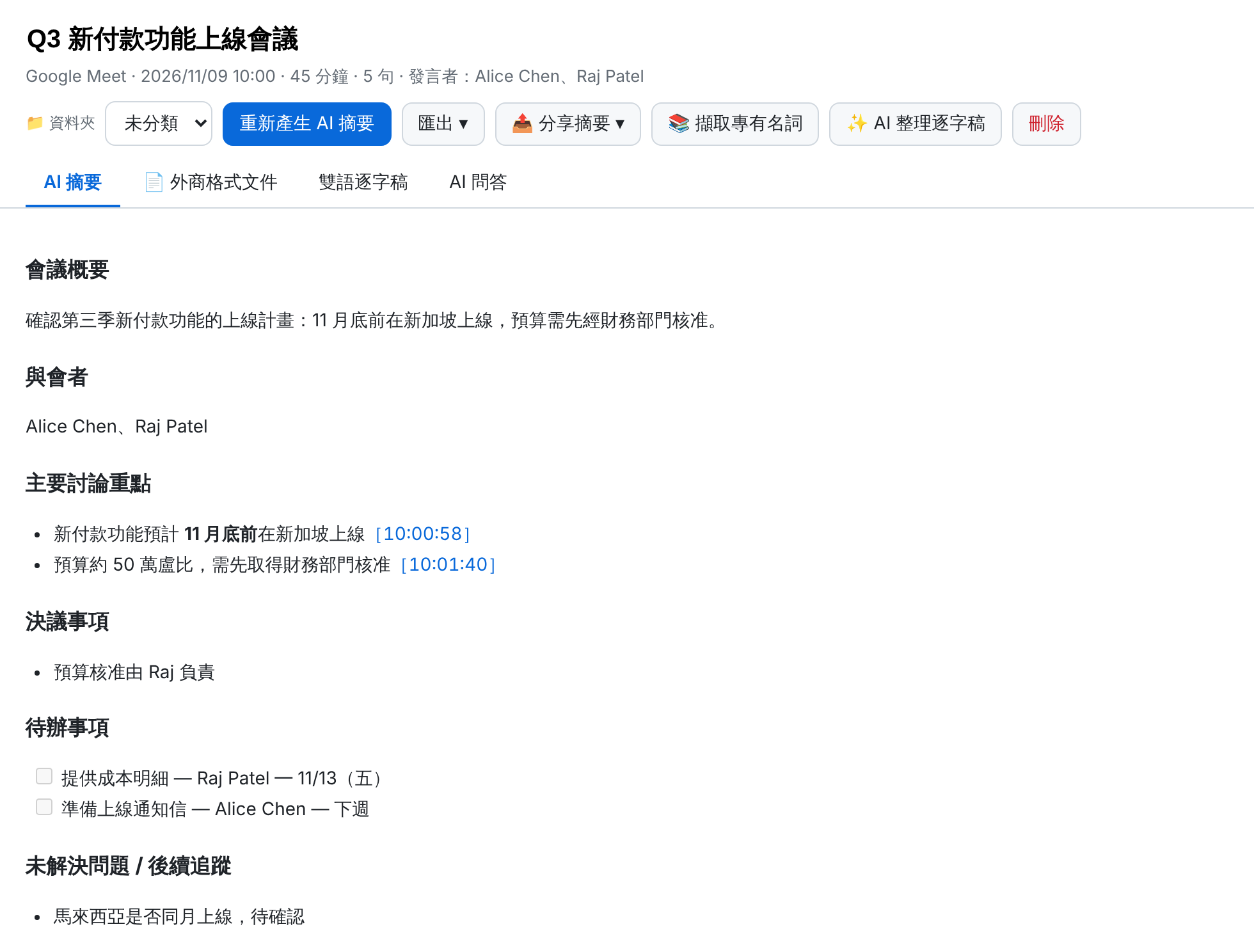
The notes are ready when the meeting ends
No more typing while listening. The AI turns the full transcript into an overview, decisions and action items, each linked to a timestamp.
- Action items include owners and due dates
- Lines you star during the meeting are highlighted
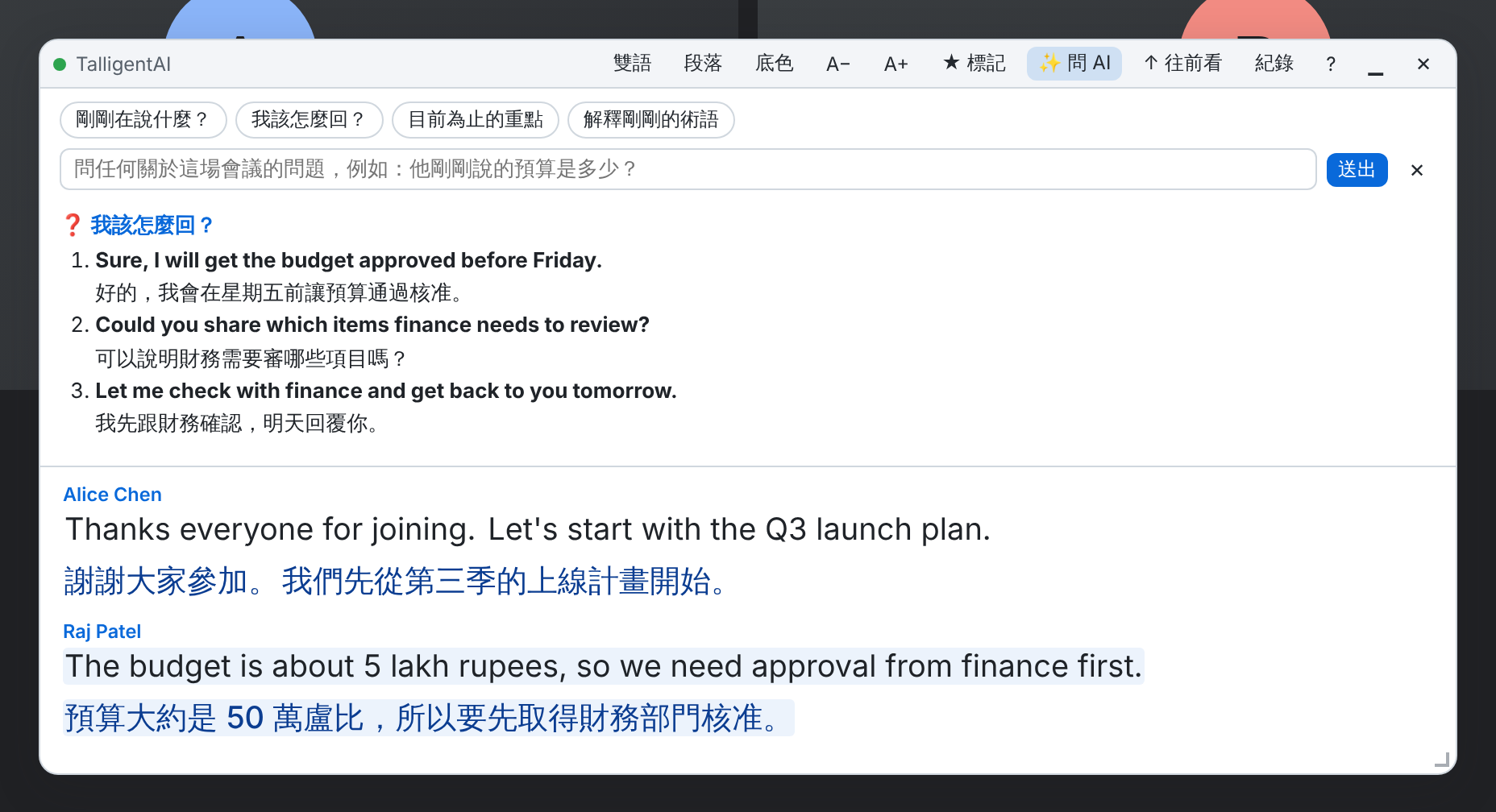
Lost in the meeting? Don't wait until it's over
Zoned out during a long meeting? That's fine. Click “What did they just say?” and catch up in seconds.
Click “✨ Ask AI” in the caption box (or press Alt+Shift+A). Answers appear right in the caption box within seconds.
- “How should I reply?” gives you 3 replies you can say out loud
- “What was just said?”, “Key points so far”, “Explain the jargon”
- Or type your own question, e.g. “What budget did he just mention?”
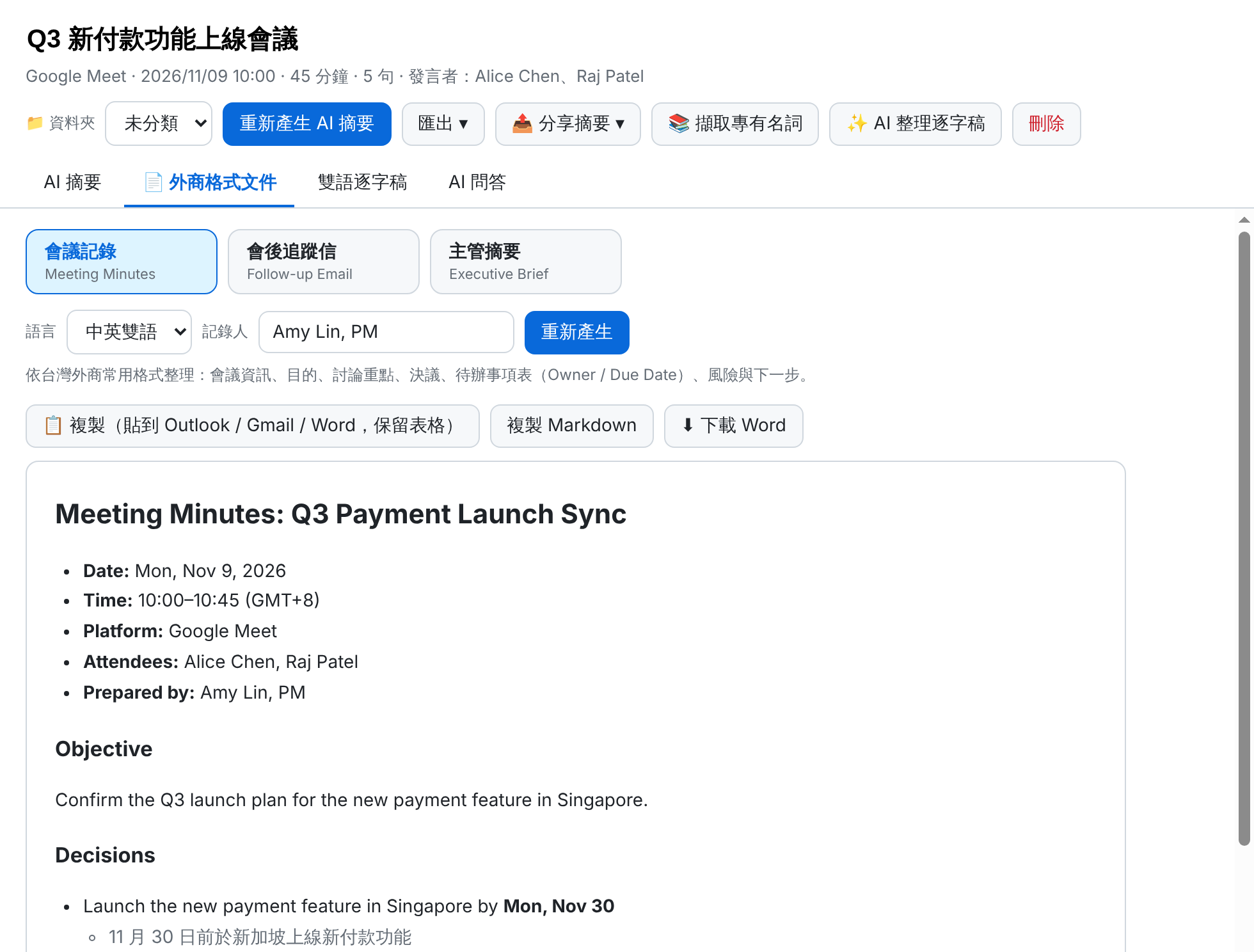
Minutes and follow-up emails, written for you
Formatted the way multinational companies work — in English, Traditional Chinese or both. Tables paste cleanly into Outlook, Gmail and Word.
- Meeting minutes with an action-item table (Owner / Due Date)
- Follow-up email with subject line, ready to send
- One-page executive brief with a TL;DR
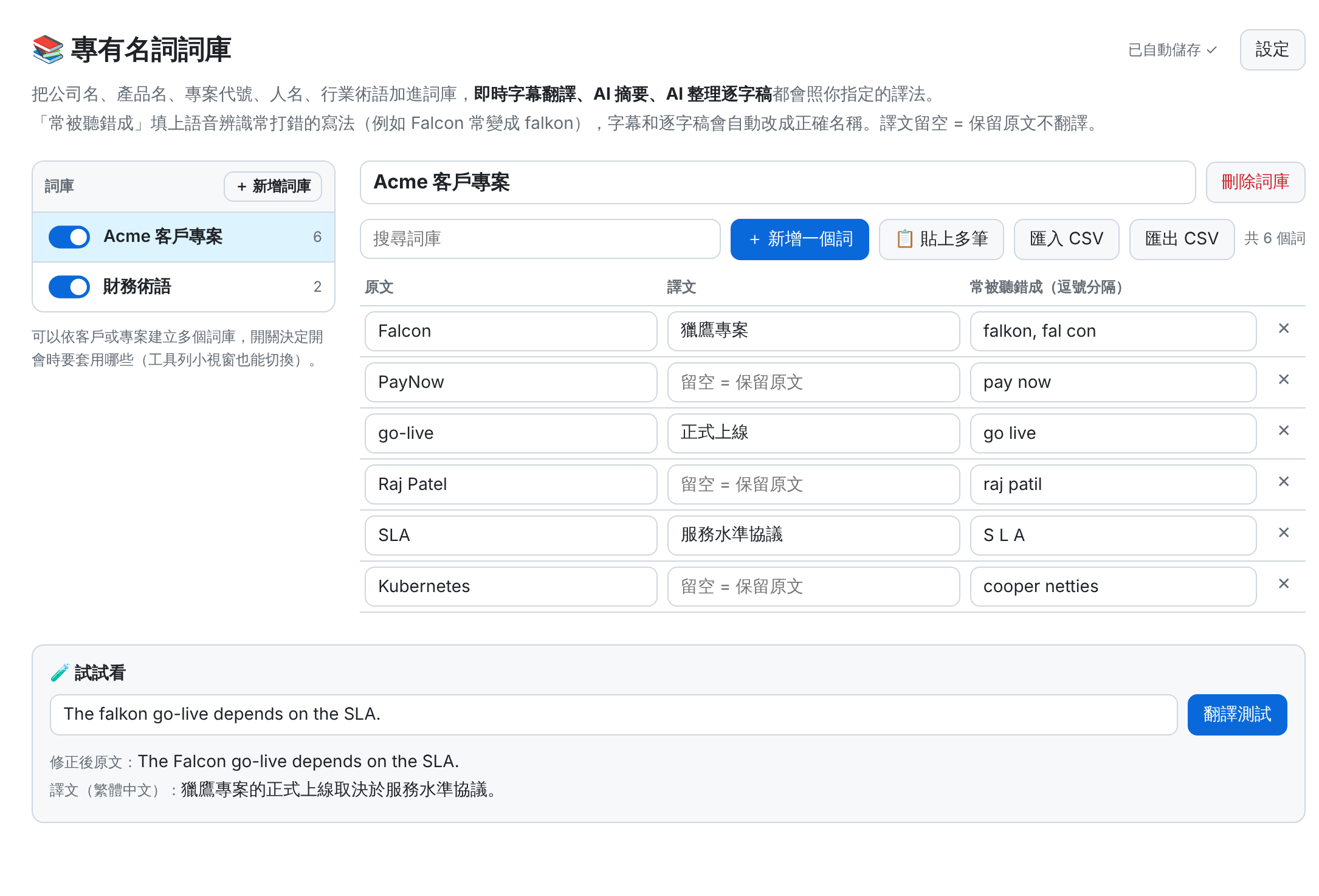
Names and jargon, translated your way
Build glossaries per client or project and set how each term is translated. Misheard spellings are corrected in captions, transcripts and summaries.
- “Extract terms” lets AI build the glossary after a meeting
- Import / export CSV, switch glossaries from the toolbar
Forgot who said what? Just ask
Ask questions like you would a colleague. The AI answers from your meetings and cites timestamps so you can check the original.
- Search one meeting, a folder or all meetings
- Questions asked during meetings are saved too
A complete, readable record
Automatically grouped by speaker and pace. Search, rename speakers, star lines, edit text and file meetings into folders.
Works with the big three
Just join the web version in Chrome. The host doesn't need to install anything, and you don't need a premium meeting plan.
Captions can't be read from the Zoom or Teams desktop apps — please join on the web.
Start free, upgrade when you need more
Free trial
Pro
Pro+
Compare plans
| Free trial | Pro | Pro+ | |
|---|---|---|---|
| During the meeting | |||
| Live bilingual captions | ✓ | ✓ | ✓ |
| Meeting translation per month | 3 hours (first month) | 15 hours | 30 hours |
| Live preview while speaking | — | ✓ | ✓ |
| Ask AI during meetings (what was said, how to reply) | 5 in trial | ✓ | ✓ |
| AI questions (during + after meetings, per month) | 10 in trial | 60 (5 cross-meeting) | 200 (15 cross-meeting) |
| After the meeting | |||
| AI meeting summary | 5 in trial | ✓ | ✓ |
| Business documents (minutes, follow-up email, executive brief) | 2 in trial | ✓ | ✓ |
| AI Q&A | 5 in trial | One meeting, all meetings | One meeting, folders, all meetings |
| AI transcript clean-up | 1 in trial | 20 / month | 40 / month |
| Glossary | — | ✓ | ✓ |
| Clients & projects | |||
| 📊 Client & project reports (progress tracker, weekly reports, QBRs) | — | — | 20 reports / month |
| 🏆 My achievements (six-month review, performance review, resume bullets) | — | — | 3 / month |
| Stronger, high-quality AI model (reports, QBRs, My achievements) | — | — | ✓ |
| Nested folders | — | — | ✓ |
| Export & data | |||
| Bilingual transcripts, full-text search | ✓ | ✓ | ✓ |
| Export a meeting (Markdown, TXT, Word) | — | ✓ | ✓ |
| Excel, JSON and bulk export | — | — | ✓ |
| Backup and restore | — | ✓ | ✓ |
| Remove “Generated by TalligentAI” when sharing | — | ✓ | ✓ |
Why Pro+?
Ask whenever you need to — “What was just said?”, “How should I reply?” — five times a meeting, all month long.
Seven hours of English meetings a week without watching the meter.
Weekly reports, client reports, QBRs and My achievements are written by a stronger, high-quality AI model — deeper analysis and polished writing, ready for your manager and clients.
Organize by client or project and ask across a whole folder: “What prices did this client discuss over three months?”
💳 Prices are in US dollars. If your card is in another currency, the amount charged is converted at your card issuer's exchange rate, and some issuers add a foreign transaction fee (about 1.5%).
Prices include tax. Subscriptions renew automatically and can be cancelled at any time. Plans start immediately after payment and monthly and annual plans are non-refundable, so please try the free trial first (see the Refund Policy). Need more hours on Pro? Upgrade to Pro+ at any time.
Questions you might have
Why are prices in US dollars? Will my card charge extra?
Payments are handled by an international payment platform, so prices are in US dollars. If your card uses another currency, the amount is converted at your card issuer's exchange rate, and some issuers add a foreign transaction fee (about 1.5%) — this is charged by your bank, not by us.
Company or product names get mistranslated — what can I do?
Add them in Settings → Glossary with the translation you want (leave it empty to keep the original), plus spellings speech recognition often gets wrong, e.g. “falkon” for Falcon. Live translation, AI summaries and transcript clean-up all use it. After a meeting, “Extract terms” lets AI build the glossary for you.
Can it replace my spreadsheet tracking and QBR prep?
It takes most of the work away. Put each client's or project's meetings in one folder and click “Update tracker”: AI pulls out requirements, action items, decisions, risks and client commitments and updates their status after every meeting. You can edit items and export to Excel. For a weekly report, client report or QBR, pick the period and generate it in one click, ready to paste into Outlook or PowerPoint. Each update or report counts as one cross-meeting question.
Does “My achievements” use company meeting content?
It only summarizes your own tasks, results and ideas, never quotes meetings verbatim, and can hide client and product names in resume bullets. Records stay on your computer; follow your company policy and confidentiality obligations before taking them outside the company. Each review counts as one cross-meeting question.
Is there a limit on AI questions?
Ask AI during meetings and AI Q&A share a monthly allowance: Pro includes 60 questions (5 across all meetings) and Pro+ includes 200 (15 across folders or all meetings). It resets on the 1st of each month. Typical use is 30–80 questions a month.
Does a bot join the meeting? Can others see the captions?
No bot joins the meeting — the extension reads captions in your own browser, and only you can see the caption box. Before recording or transcribing a meeting, please inform participants and get their consent as required by your company policy and local law.
Does the host need to do anything?
No installation or permission from the host is needed — you just need to be able to turn on captions (Zoom requires automated captions to be enabled on the account). Before recording or transcribing a meeting, obtain participants' consent as required by law and your organization.
Does it work with the Zoom or Teams desktop apps?
Not yet — it works in Chrome only. For Zoom, click “Join from your browser”; for Teams, join at teams.microsoft.com.
Where are my meeting records stored?
Our servers do not store your meeting content; your meeting records stay on your computer. Transcripts, summaries and settings are stored in Chrome on your computer. For live translation and AI features, the text being processed passes through the TalligentAI server to our AI provider, and the result is returned without being kept on our server. Our server stores only your account, plan and usage counts. See the Privacy Policy.
How accurate is the translation?
All live translation is done by AI, which uses context for more natural results than sentence-by-sentence machine translation; regional English (UK, India, Singapore) is handled. Speech recognition quality depends on the meeting platform's captions. If captions come out fragmented, “AI clean-up” fixes the transcript after the meeting.
Which languages are supported?
Spoken and translation languages can be any of 19, including Japanese, Korean, Simplified Chinese, Spanish, French, German, Vietnamese and Thai. The interface is available in Traditional Chinese, Simplified Chinese, English, Japanese and Korean.
What happens if I remove the extension?
Because records are stored on your computer, removing the extension deletes them. Back up first under Settings → Data & backup.